Two ways to add AI to your inbox
Every major chat product has connected to your inbox. ChatGPT has Gmail and Outlook connectors. Claude has Gmail, Calendar, and Drive. Apple Intelligence summarizes mail in iOS. Gemini reads inside Gmail. The connection is solved.
The interesting question is what the AI gives you back.
There are two paths. The default one, taken by every major chat tool with an inbox connector today, is to fetch the data and return text: a list of meetings, a paragraph summarizing an email. These tools render some structured content well (tables, charts, code), but none of them render your inbox in your inbox’s native UI.
The other path is to ask the same question inside your inbox, with the inbox’s own UI. Ask “what’s on my calendar this week?” and you get a calendar. Ask “what does John need?” and you get John’s actual email card, the same one you’d see if you’d searched for it manually.
We launched the second path today: the assistant page in the this+that universal inbox.
Path A: chat with connectors
The connector approach has obvious appeal. Your chat tool is already open. The integration is one-time, then forever. You don’t have to context-switch to a separate inbox app to ask a question. For pure-question use cases like “summarize this thread,” “when did Susan last email me,” “what was the agenda for yesterday’s meeting?”, connectors are wonderful.
The friction shows up when the answer needs to be the artifact, not a description of it.
An email isn’t really a paragraph. It’s a sender, a timestamp, a subject line that affects how you scan it, a thread context, attachments, labels you’ve applied, a Reply button. A chat summary of an email is missing all of those. You can ask follow-up questions to recover them (“what’s the subject line?”), but you’ve now made the chat the gatekeeper of an artifact you used to scan in a glance.
A meeting isn’t a bulleted line. A real calendar invite has a time, a list of attendees with response statuses, a location, a conferencing link, attachments, a description you can edit, and an RSVP button. The chat list doesn’t have any of that.
A Slack thread isn’t a transcript. It’s a reactions strip, a participant avatar bar, a thread depth indicator, message-level edit history, a reply-in-thread affordance. None of that survives the paraphrase.
When the chat is your only interface to the inbox, you eventually find yourself switching back to the real inbox to take the action. The chat helped you find the thing, then handed it back to you for the real work.
Path B: chat inside the inbox
Path B keeps the inbox UI and puts chat inside it.
Same chat affordance: a conversation dock, an input bar at the bottom, multi-turn history. But the assistant’s responses aren’t paragraphs. They’re inbox UI components, rendered inline. Ask about an email and you get an email card identical to the one in your inbox view, with the same Open, Reply, Archive buttons. Ask about your calendar and you get a real calendar widget with real events you can click. Ask for a draft and a compose panel opens with the same recipient picker, formatting toolbar, and tone controls you’d use to compose a fresh message.
The chat is the question layer. The inbox UI is the answer layer.
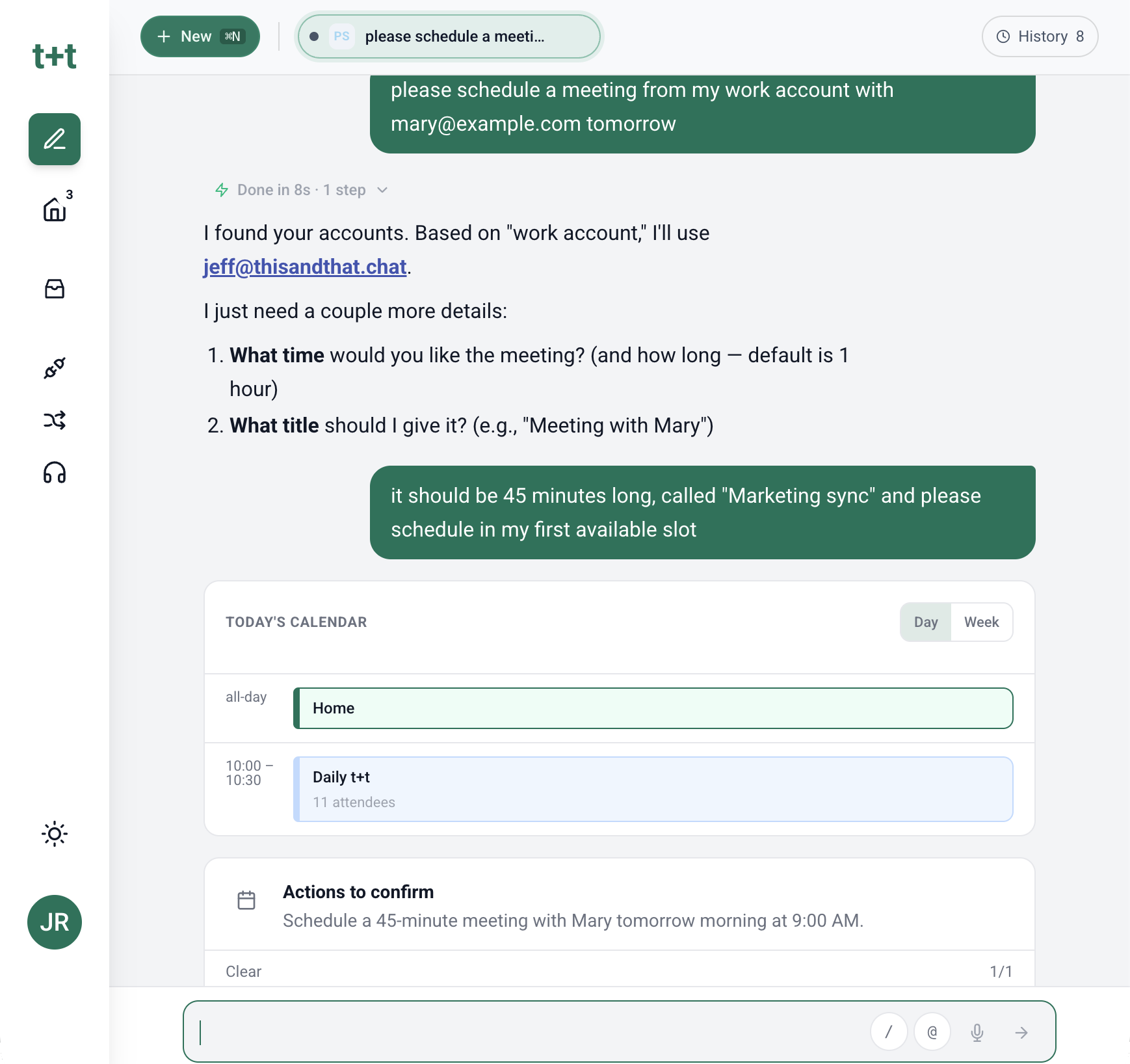
The implementation detail that makes this possible: the assistant doesn’t just call tools that return JSON. It returns structured artifacts. More than 20 types in the current version, including email cards, Slack thread embeds, calendar event invites, draft compose panels, task cards (the this+that DoBox primitive), action proposal modals for batch operations, communication reports, and structured search result lists. Each is the same React component the rest of the inbox uses. Same UI. Same affordances. Same muscle memory.
Why the inbox UI is worth keeping
It’s strange that this needs explaining, but the inbox UI we use every day was hard-won.
Email cards have a particular layout because thirty years of users have taught email apps how to make a sender, subject, snippet, and timestamp scannable in 100 milliseconds. Calendar grids look the way they do because a different generation of UX research figured out how humans plan time visually. The Reply button is in the same place across every major mail client because that’s the place users’ hands have learned to find it. The same applies to Slack’s reactions strip, the conversation-threading model, the way RSVP buttons appear with the conference link directly under them.
None of this is decoration. It’s the accumulated craft of every team that ever built an email or calendar or messaging app, refined by tens of millions of users finding the rough edges.
The chat-with-connectors approach is essentially “we’ll add AI to your inbox by taking you out of the inbox.” It works for some tasks. It’s strictly worse for the tasks where the artifact matters.
Putting chat inside the inbox lets you have both: the AI reasoning and the UI you’ve used for decades.
Some things you can actually ask the assistant
These are real prompts that work today.
“Schedule a meeting with Mary on Tuesday.” The assistant looks at your calendar, finds a time that works, and drafts the invite. What you see back is a real calendar event preview with attendees, time, location, and a Send Invite button. Edit anything before sending. The conversation continues. “Make it 30 minutes instead” updates the same invite.
“Mark all DoBox tasks about project Sunspot done.” The assistant queries your DoBox for matching tasks and returns them as a list of task cards, the same UI as the DoBox view. It proposes a batch action: “Resolve these 7 tasks?” You see each task individually with title, assignee, and due date. Deselect any you want to keep open. Confirm and they all resolve.
“Find every PR our team opened this week and verify the linked tasks are closed.” This crosses two tools. The GitHub MCP server fetches PRs filtered by author and date. The assistant then matches each PR’s referenced ticket number against your DoBox tasks. You get back a report: 12 PRs found, 9 with corresponding tasks resolved, 3 with tasks still open. The 3 outliers are listed with links to both the PR and the task. Action proposed: resolve the 3 remaining tasks.
“Show me every email and Slack message this week about customer support.” Semantic search across your communications, not just keyword match. The assistant returns a unified list mixing emails and Slack messages, sorted by relevance, with sender, channel, and date. Each is its own card. Click any to open the full message in its native client view. Filter the list further by asking a follow-up.
“Connect the Tavily MCP server.” The assistant walks you through the connection, asks for the API key, registers the server, then introduces itself to the new tools and reports what they expose. Once connected, every future conversation and workflow can use Tavily as a research tool.
“Draft a message to June about why our product works for her IT team, grounded in our security FAQ.” The assistant fetches the security FAQ at the URL you provided, pulls the relevant points for an IT team’s concerns, and drafts a message tailored to June’s role. The draft opens in the compose panel with recipient pre-filled and the source FAQ section linked at the bottom. Edit, send, or ask the assistant to revise.
The shape of each answer is an inbox artifact you can act on directly, not a paragraph you have to act on somewhere else.
All of these work via voice as well, which is especially handy on mobile. The microphone icon next to the input bar drops a transcript into the conversation, and the assistant responds with the same inbox UI it would for a typed prompt.
Try it
All of this is live as of today. Open the assistant page at /assistant inside the this+that universal inbox.
Two ways to add AI to your inbox. We picked the one that keeps the inbox.
Try the assistant: assistant.thisandthat.chat.